Mistral API Key
Mistral AI offers a free experimental tier so you can test their models via API without immediate cost. Follow these steps to get your key.
1. Create your account
- Go to the Mistral AI Console.
- Sign up with your email, Google, or GitHub account.
- Once logged in, set up a Workspace: give it a name (e.g. "MyLab") and accept the terms of service.
2. Activate the free "Experiment" plan
Mistral requires you to select a plan to enable the API, but offers a free tier for testing.
- In the left sidebar, click Billing or Limits.
- Look for the "Experiment" plan (often labeled Free or Experimental).
- Click Subscribe or Select.
- You'll likely be asked to verify your phone number by SMS, a security measure against bot abuse of the free tier.
3. Generate your API key
Once your plan is active:
- Go to the API Keys section in the left sidebar.
- Click the orange "Create new key" button.
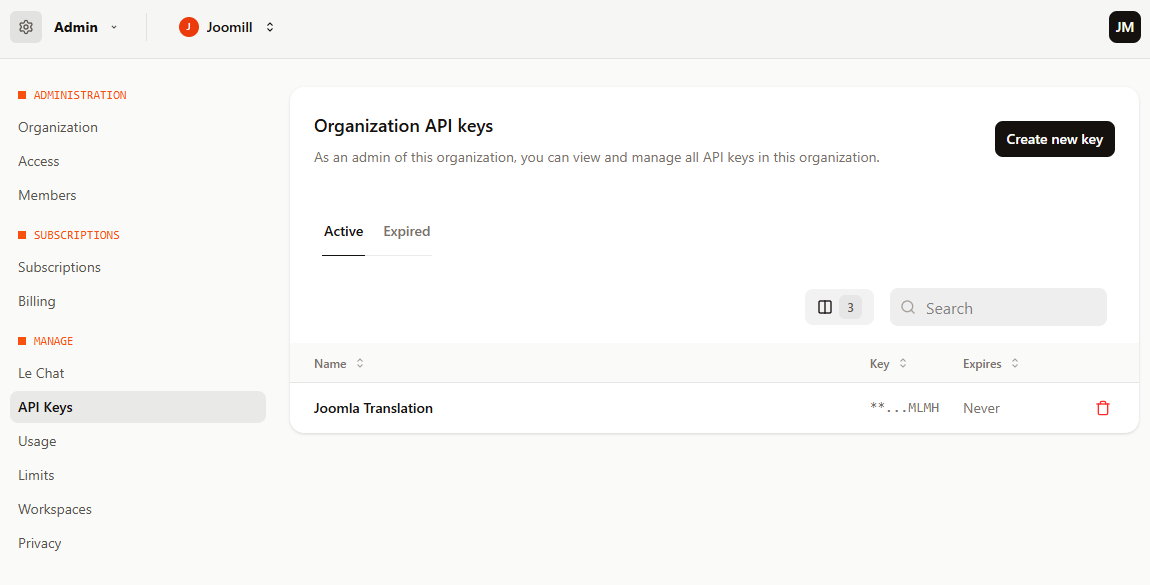
- Give your key a name (e.g. "Test-Key") so you can identify it later.
- Click Create key.
4. Secure your key
Copy the key immediately. Mistral only shows the full string once. If you close the window without copying it, you'll need to generate a new one.
5. Add the key to Joomla
- Log in to your Joomla backend.
- Go to System > Manage > Plugins and open System - Autolanguage.
- Open the Service & API tab.
- Set Translation Service to Mistral AI.
- Paste your key into the Mistral API Key field and save.
- Select the model you want to use for translations.