Google Cloud Translation API Key
Follow these steps to create and secure a Google Cloud Translation API key.
Step 1: Create a new project
- Go to the Google Cloud Console.
- Log in with your Google account.
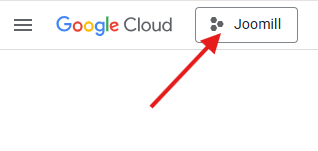
- Click the Project Dropdown in the top-left corner (next to the Google Cloud logo).
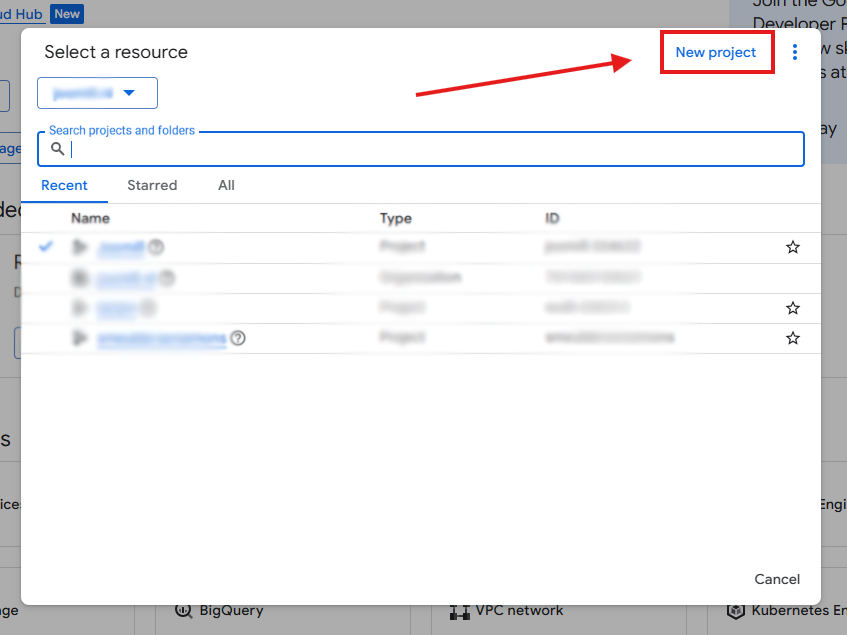
- Click New Project in the top-right of the pop-up window.
- Enter a name (e.g.
Joomla-Auto-Translate) and click Create.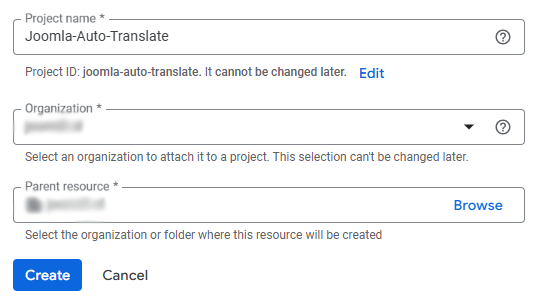
- Important: make sure the new project is selected in the dropdown menu before continuing.

Step 2: Set up billing (required)
Google requires a linked credit card or bank account to activate APIs, even if you stay within the "Free Tier" limits.
- Open the main menu (≡) in the top-left corner and select Billing.
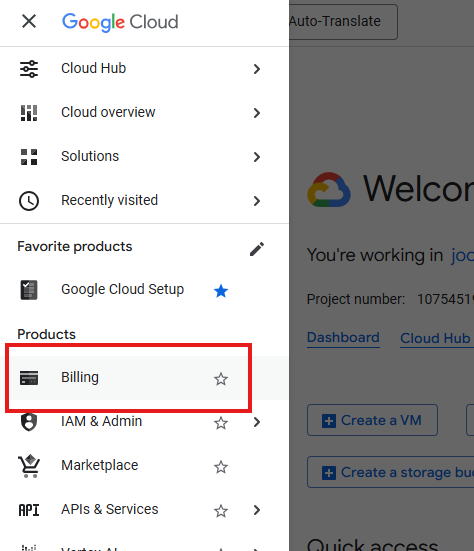
- Click Link a billing account or Manage billing accounts.
- Follow the prompts to enter your payment information.
Step 3: Enable the Translation API
The API key won't work unless the "Cloud Translation" service is turned on.
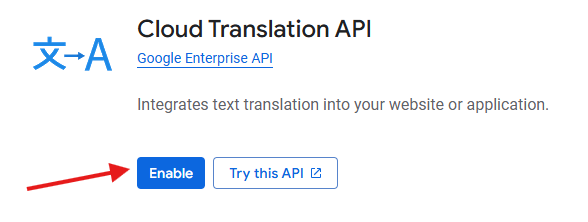
- In the top search bar, type "Cloud Translation API".

- Select the result under "Marketplace" or "APIs".
- Click the blue Enable button.
Step 4: Create your API key
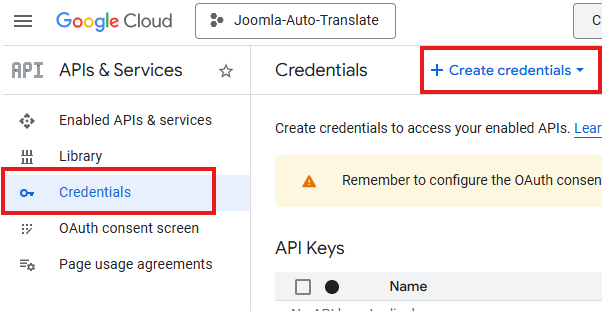
- Go to APIs & Services > Credentials in the sidebar menu (≡).
- Click + CREATE CREDENTIALS at the top and select API key.
- A pop-up shows your key (starting with
AIza...). Copy it for later use.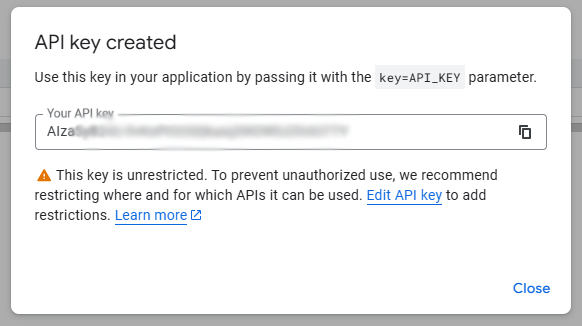
Step 5: Secure your key (recommended)
To prevent unauthorized use and unexpected costs, restrict your key to this API only.
- In the Credentials list, click the Name of the key you just created.

- Under API restrictions, select Restrict key.
- Click the "Select APIs" dropdown, search for Cloud Translation API, and check the box.
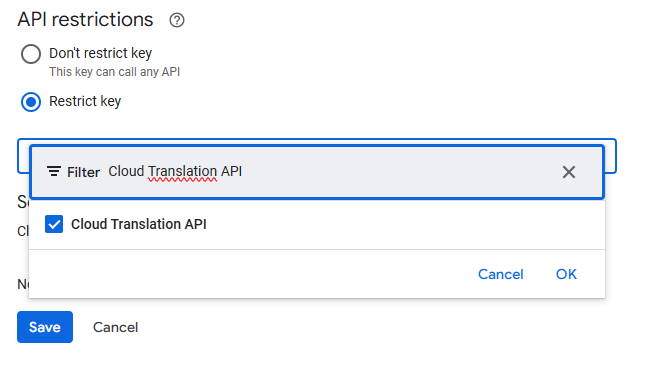
- Click OK, then click Save.
Step 6: Add the key to Joomla
- Log in to your Joomla backend.
- Go to System > Manage > Plugins and open System - Autolanguage.
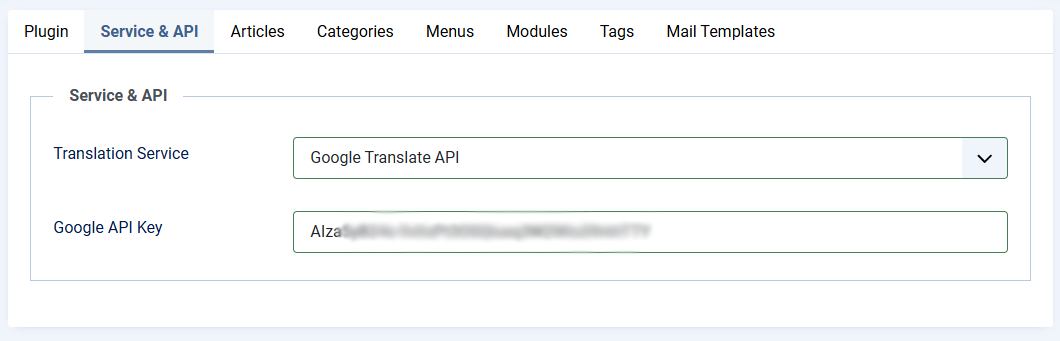
- Open the Service & API tab.
- Set Translation Service to Google Translate API.
- Paste your key into the Google API Key field.
- Save & Close.
Usage & costs at a glance
| Usage volume | Estimated cost |
| First 500,000 characters / month | Free |
| Every 1 million characters after | ~$20.00 |