Calendar
Unlock this and other features by upgrading to Joomill Opening Hours PRO
Go PRO
Available from version 6.4.0 of the module and the content plugin.
The month calendar shows a whole month at a glance: open days in green, closed days in red, and days without opening hours left neutral. Every day shows its hours and its note. Your exceptional dates, yearly recurring periods and repeating days are applied exactly as in the weekly table, so visitors can see at once when you are closed for a holiday or open late.
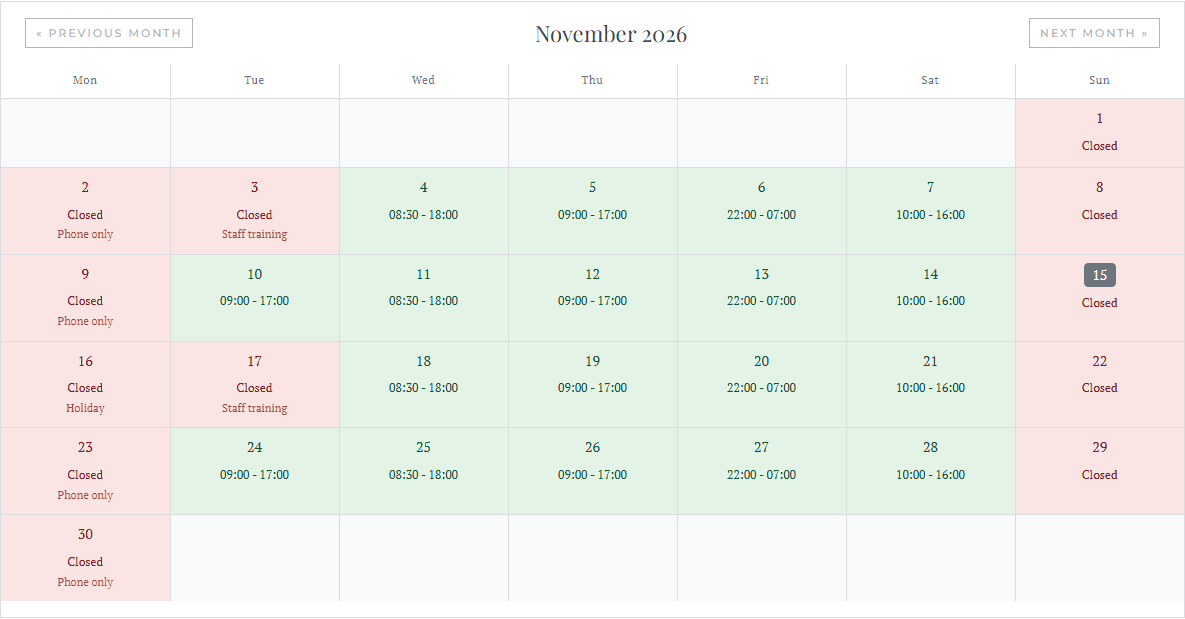
Show the calendar in a module
Open the Opening Hours module, go to the Advanced tab and set Layout to Calendar. The module now shows the month calendar instead of the weekly table.
The Calendar layout shows the calendar only. To show the currently open or closed message, notes or upcoming exceptional dates as well, publish a second Opening Hours module with the default layout, or use the tags of the content plugin.
Show the calendar in an article
With the Opening Hours content plugin enabled, place this tag in an article or in a custom HTML module with Prepare Content on:
{openinghourscalendar module="114"}
Replace 114 with the ID of your Opening Hours module. The calendar uses the hours and settings of that module, whichever layout the module itself uses. Without module="..." the first published Opening Hours module is used.
Settings
These settings are on the Display options tab and only appear when the module uses the Calendar layout.
| Month navigation in the calendar | Shows buttons to go to the previous and next month, up to two years ahead. Switch it off to show the current month only. The {openinghourscalendar} tag follows this setting of the module it names.Default: Yes |
| On narrow screens | What the calendar shows when there is little room: Month as a list (one line per day) or Weekly table (the regular weekly opening hours). See below. Default: Month as a list |
| Week navigation | Only shown when On narrow screens is set to Weekly table. Adds buttons to go to the previous and next week. See Date & Time settings. |
Moving between months
The previous and next buttons load the other month in place, without reloading the page. They do not add a separate web address per month, so search engines do not find dozens of nearly identical calendar pages on your site. The buttons also work on a site with page caching on.
Visitors without JavaScript see the current month, without the buttons.
Phones and narrow columns
The calendar adapts to the width it gets, not only to the size of the screen. In a sidebar or a narrow column it adapts just like on a phone.
- Below about 760 pixels wide the text becomes a little smaller.
- Below about 560 pixels wide the calendar switches to a list with one line per day, each with its weekday, hours and note. Days without opening hours are left out of the list.
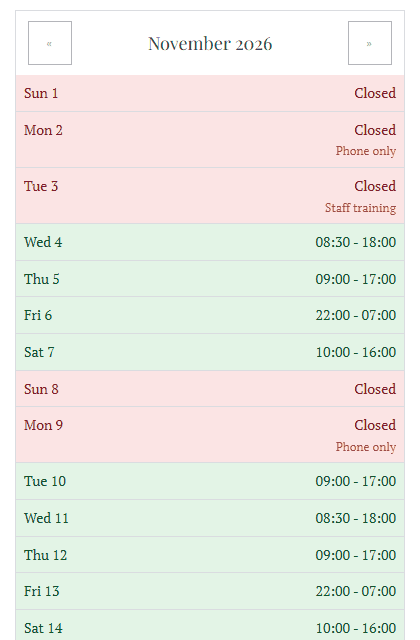
With On narrow screens set to Weekly table, the module shows the regular weekly table at that width instead of the list.
Which days are green or red
| Green (open) | At least one opening hours field of that day holds valid hours, such as 09:00 - 17:00. |
| Red (closed) | The day holds a text without a '-', such as CLOSED, or an exceptional date closes it. The calendar shows the word Closed in the language of the page. |
| Neutral | No opening hours were entered for that day. A day without hours is not shown as closed. |
Today is marked with a badge. The weekday the calendar starts on follows the Week Starts On setting: Saturday, Sunday or Monday.
Colours and styling
The calendar uses neutral styling that fits most templates. To change the green and red, add this to the Custom CSS field of the module, or to your template:
.openinghours-calendar {
    --oh-cal-open-bg: #e3f4e6;
    --oh-cal-open-color: #14532d;
    --oh-cal-closed-bg: #fbe4e4;
    --oh-cal-closed-color: #7f1d1d;
}
The -bg values set the background of the day, the -color values the text.
To change the markup of a month, create a template override of the module and edit default_calendargrid.php. That file renders a single month, both on the page and when a visitor moves to another month.
Language
Day names, month names and button texts follow the language of the page. On a multilingual site one module shows a German calendar on your German pages and an English calendar on your English pages.