Exceptional Opening Hours
Unlock this and other features by upgrading to Joomill Opening Hours PRO
Go PRO
Use this form when your opening hours differ from the regular opening hours, for example on holidays or during a special event.
Click the green + button to add a new date (or date range).
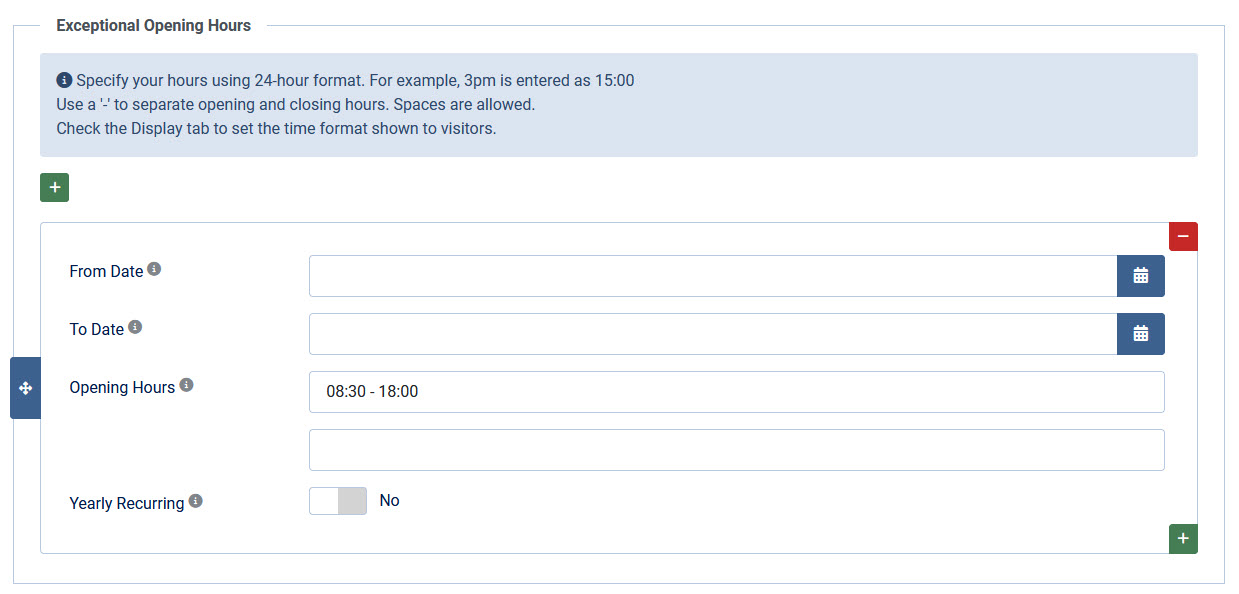
| From Date | Enter a date in DD-MM-YYYY (or select a day with the calendar button) from when the exceptional opening hours apply. |
| To Date | Enter a date in DD-MM-YYYY (or select a day with the calendar button) until when the exceptional opening hours apply. You can leave this field empty when you only need 1 day. If empty, only the From Date is used. |
| Opening Hours |
Enter the opening hours for these exceptional days. You can use 2 lines of openings a day. Specify your hours using 24-hour format. For example, 3pm is entered as 15:00. |
| Yearly Recurring | Set this date as yearly recurring. Useful for events like Christmas or national holidays. The year in the From Date and To Date fields is ignored. |
Upcoming Exceptional Opening Hours
You can show the next exceptional openings at the bottom of the module. You can add an intro text, CSS class and number of days in the settings.
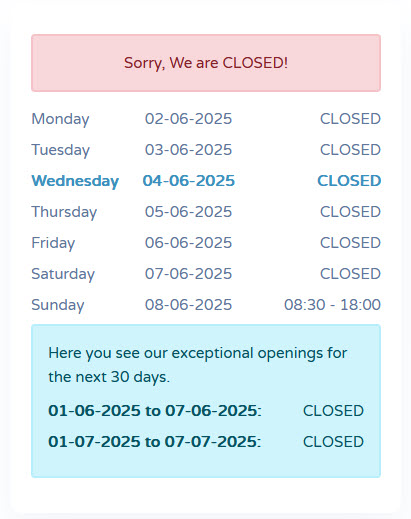
| Show Upcoming Exceptional Openings | Select Yes or No. |
| CSS Class | Add a CSS class for styling the upcoming exceptional hours in your template. Default: alert alert-info |
| Title | Add a title or intro text to your upcoming exceptional hours in the textarea. You might use HTML. |
| Number of Days to Look Ahead |
Enter the number of days to look ahead. When no exceptional openings are found within this range, the block is hidden. |
