Create your first gallery
After you installed the Client Response Gallery component you will find the list of galleries in Components » Client Response Gallery » Galleries
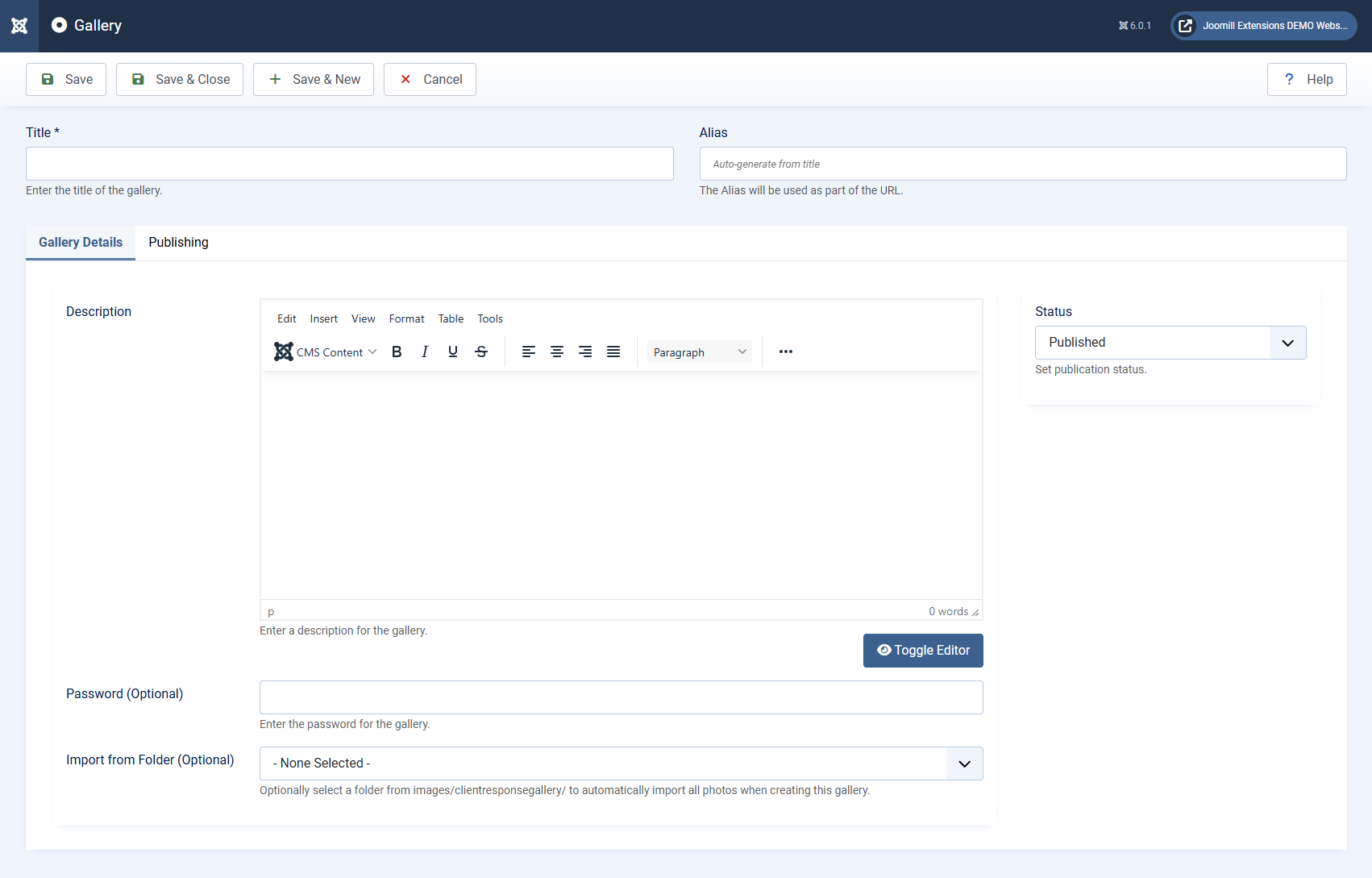
Click the New button to create your gallery
| Title | Enter the title of the gallery. |
| Alias | The Alias will be used as part of the URL. (leave empty to use the title as alias) |
| Description | Enter a description for the gallery. You can show this description in the galleries overview and the gallery detailpage, based on the component options. |
| Status | Set publication status. Choose from Published, Unpublished, Archived, Trashed. Default: Published |
| Password (Optional) | Enter the password for the gallery. Every visitor needs to enter the password before they can see the gallery. When this field is empty, the gallery is open for everyone. As of version 1.2.3 the unlock is kept on the server, for the length of the visitor's browser session. The visitor is asked for the password again in a new session, and there is nothing in their browser they can change to get in without it. The password is also stored scrambled, so you cannot read it back later: the field shows the stored value, not the password you typed. Write the password down when you hand it to your client. To change it, type the new password over whatever is in the field and save. A password set before 1.2.3 keeps working and is converted automatically the first time someone uses it. |
| Import from Folder (Optional) | Optionally select a subfolder from images/clientresponsegallery/ to automatically import all photos when creating this gallery. You can use this options when the photos are already on the server, but you can also Batch Upload the photos to this gallery on a later moment. For more information read the Batch Upload article. Imported photos keep the folder you point at here. That matters for a gallery with a password: photo files are served straight from the images folder, so give such a folder a name that cannot be guessed from the gallery title. Photos added through Batch Upload or from Lightroom land in the gallery's own folder, which already carries a random suffix. See Upload Your Photos. |
Gallery Layout options
This option overrides the global setting. Leave empty to use the default.
| Columns | Number of columns to display this gallery's photos in, overriding the global Gallery Columns option for this gallery only. Choose 1 to 6, or leave on Global to use the site-wide setting. |
Gallery Selection options
These options override in the general options. Leave empty to use default settings.
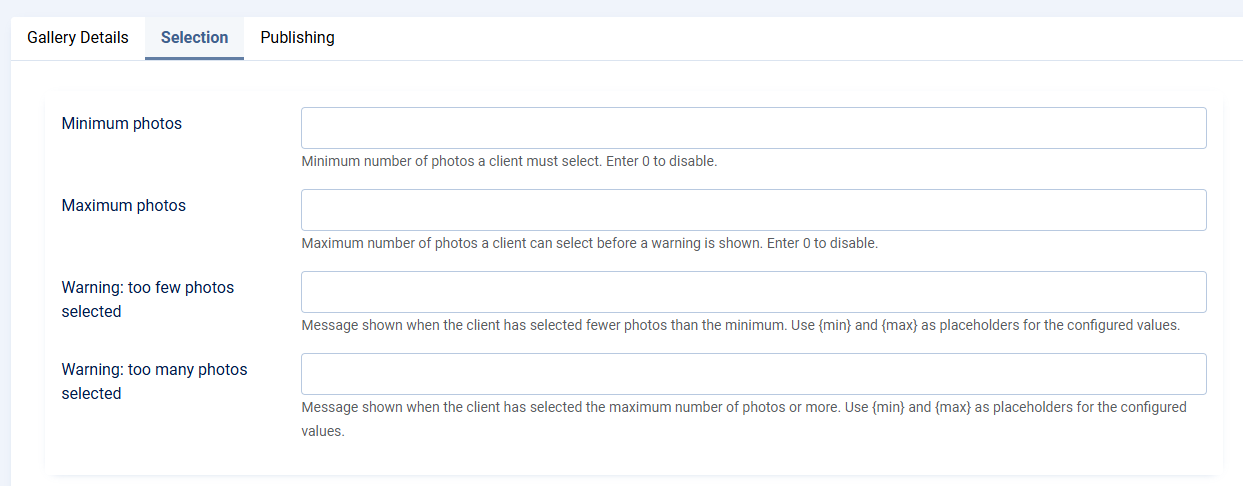
| Minimum Photos | Minimum number of photos a client must select. A warning is shown when fewer photos are selected. Enter 0 to disable. Default: 0 |
| Maximum Photos | Maximum number of photos a client can select. A warning is shown when this number is reached or exceeded. Enter 0 to disable. Default: 0 |
| Warning: too few photos selected | Message shown when the client has selected fewer photos than the minimum. Use {min} and {max} as placeholders for the configured values. Example: Please select at least {min} photos. |
| Warning: too many photos selected | Message shown when the client has reached the maximum number of photos. Use {min} and {max} as placeholders for the configured values. Example: You have reached the maximum of {max} photos. Extra photos will incur additional costs. |