Getting started
Admin Customizer is a system plugin, so all of its settings live on a single plugin screen with a row of tabs. This page shows you how to open it, what the tabs do, and how to brand your backend in a couple of minutes.
Open the plugin
- Go to System > Manage > Plugins.
- Search for Admin Customizer and open System - Joomill Admin Customizer.
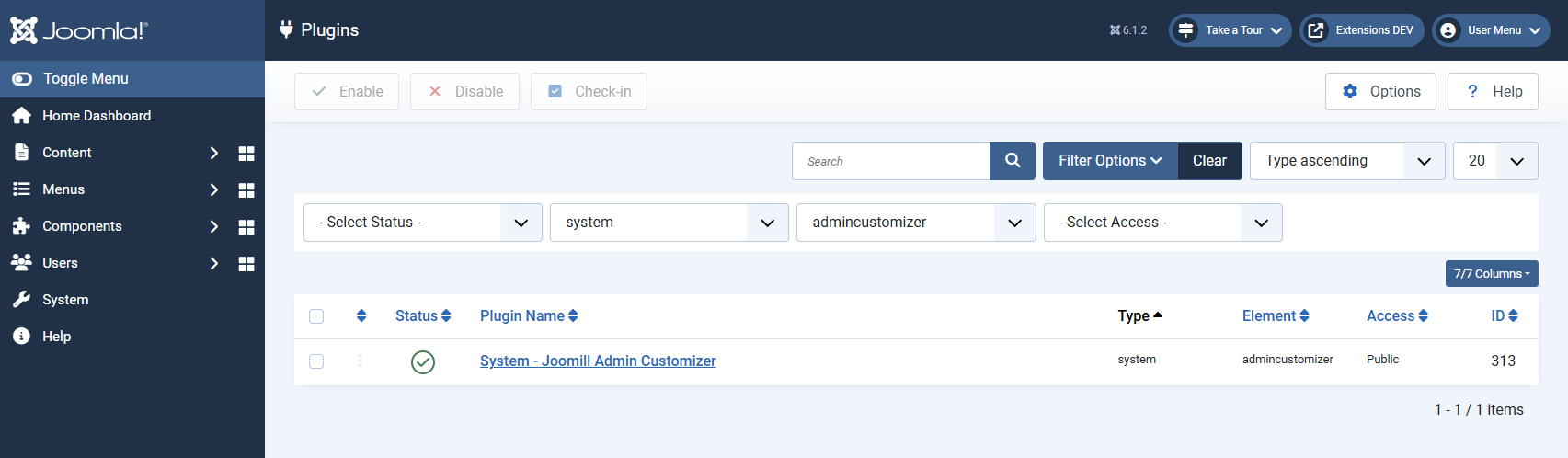
All customization happens on this screen. When you're done, use the Save button in the toolbar and reload the page to see your changes.
The tabs
The plugin's settings are grouped into tabs. You don't have to use them all, most sites only need the Branding tab.
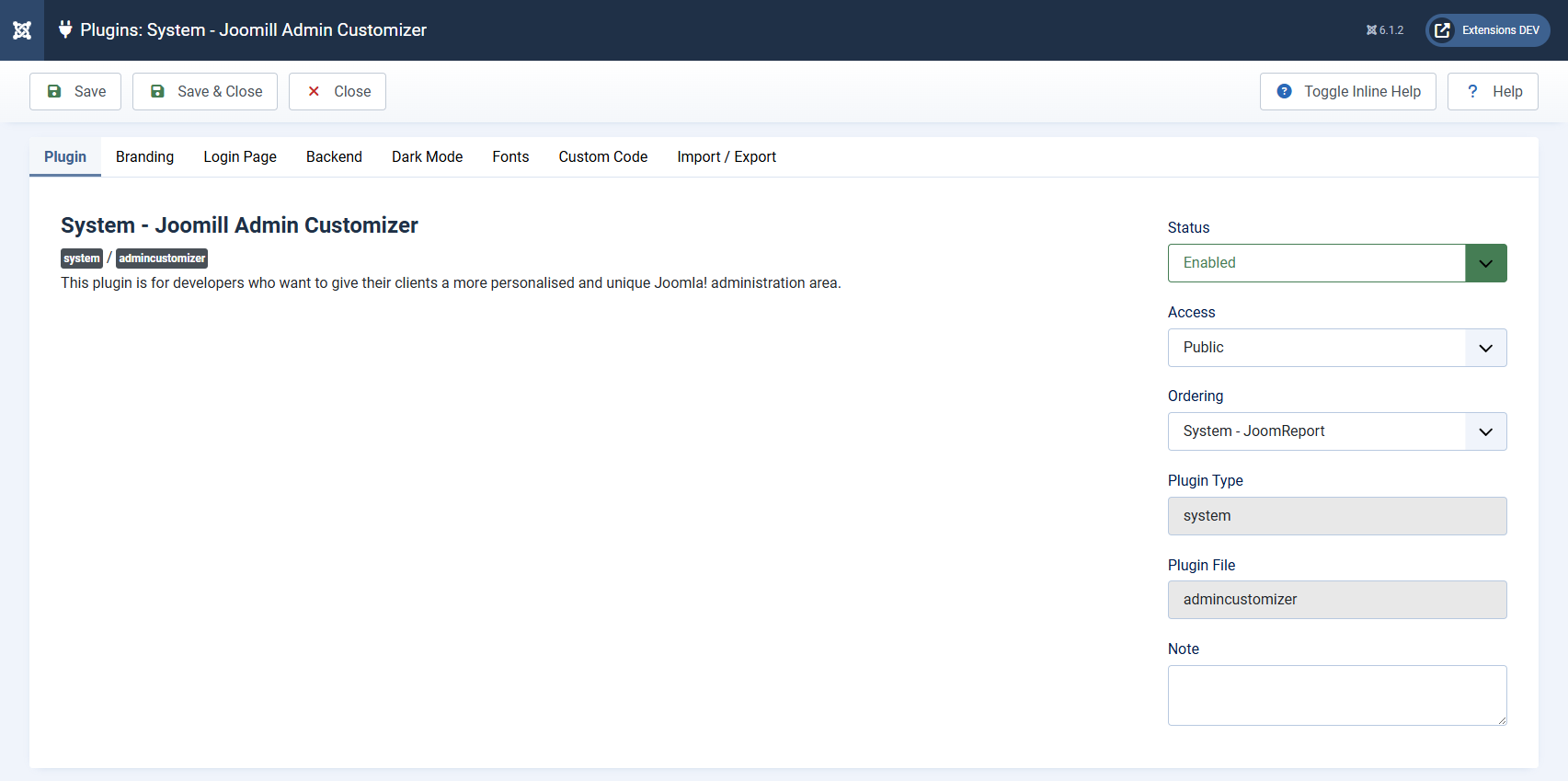
- Branding: your brand color, text and link colors, corner radius, shadow style, favicon and logos. This is the foundation; the rest of the admin is derived from it.
- Login Page: style the login screen independently: background, login box, header and sidebar.
- Backend: fine-tune the backend main area, header and sidebar menu.
- Dark Mode: by default dark mode is derived automatically; here you can override specific dark colors.
- Fonts: load a Google Font for headings and body text, hosted locally for GDPR.
- Custom Code: add your own CSS or JavaScript for the last few percent.
- Import / Export: save your styling to a file and reuse it on another site.
Brand your backend in three steps
- Open the Branding tab and set a Brand Color.
- Click Save.
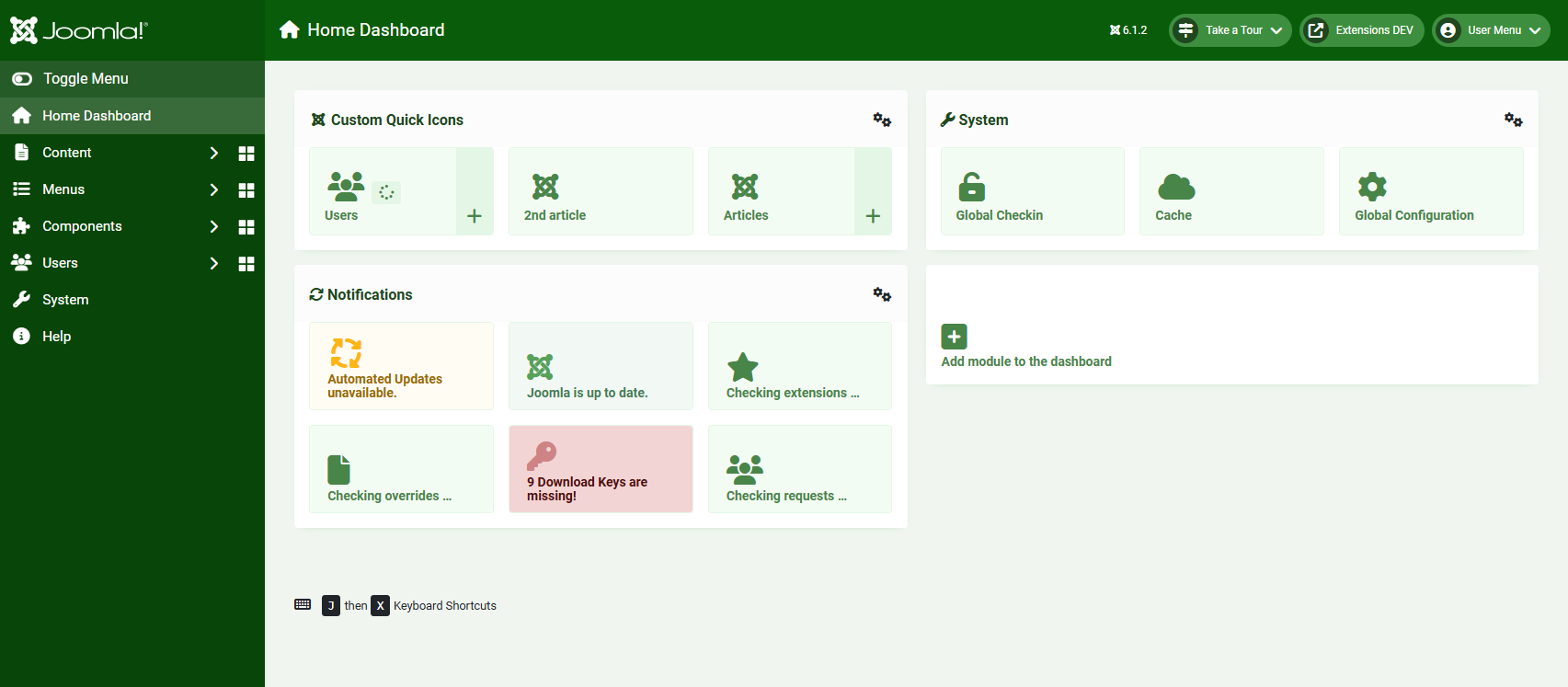
- Reload the page. Your header, sidebar, buttons, links, tabs and form controls now follow your brand color, and the login page picks it up too.

How the settings relate to each other
Understanding these three rules will save you a lot of clicking:
- One color drives everything. The Brand Color from the Branding tab is propagated across the whole admin. Text contrast is calculated automatically, so a light surface gets dark text and a dark surface gets light text, you never end up with unreadable labels.
- Sections can override the brand. The Login Page and Backend tabs follow your Branding settings by default. Each header and sidebar has a Custom Styling toggle so you can give one section its own colors without affecting the rest.
- Dark mode is automatic. Out of the box, Admin Customizer leaves Joomla's dark mode exactly as it is and derives your brand colors for it automatically. You only touch the Dark Mode tab if you want specific dark colors.
Reverting
Nothing is written into your template. Admin Customizer layers on top of Atum using CSS variables, so if you disable the plugin under System > Manage > Plugins, your backend and login page revert to the standard Joomla look instantly.