Custom Code tab
Almost everything can be done with the options on the other tabs, but for the last few percent you can add your own CSS or JavaScript here, without editing any template files. Each option has its own Yes/No switch and a code editor that appears when you turn it on.
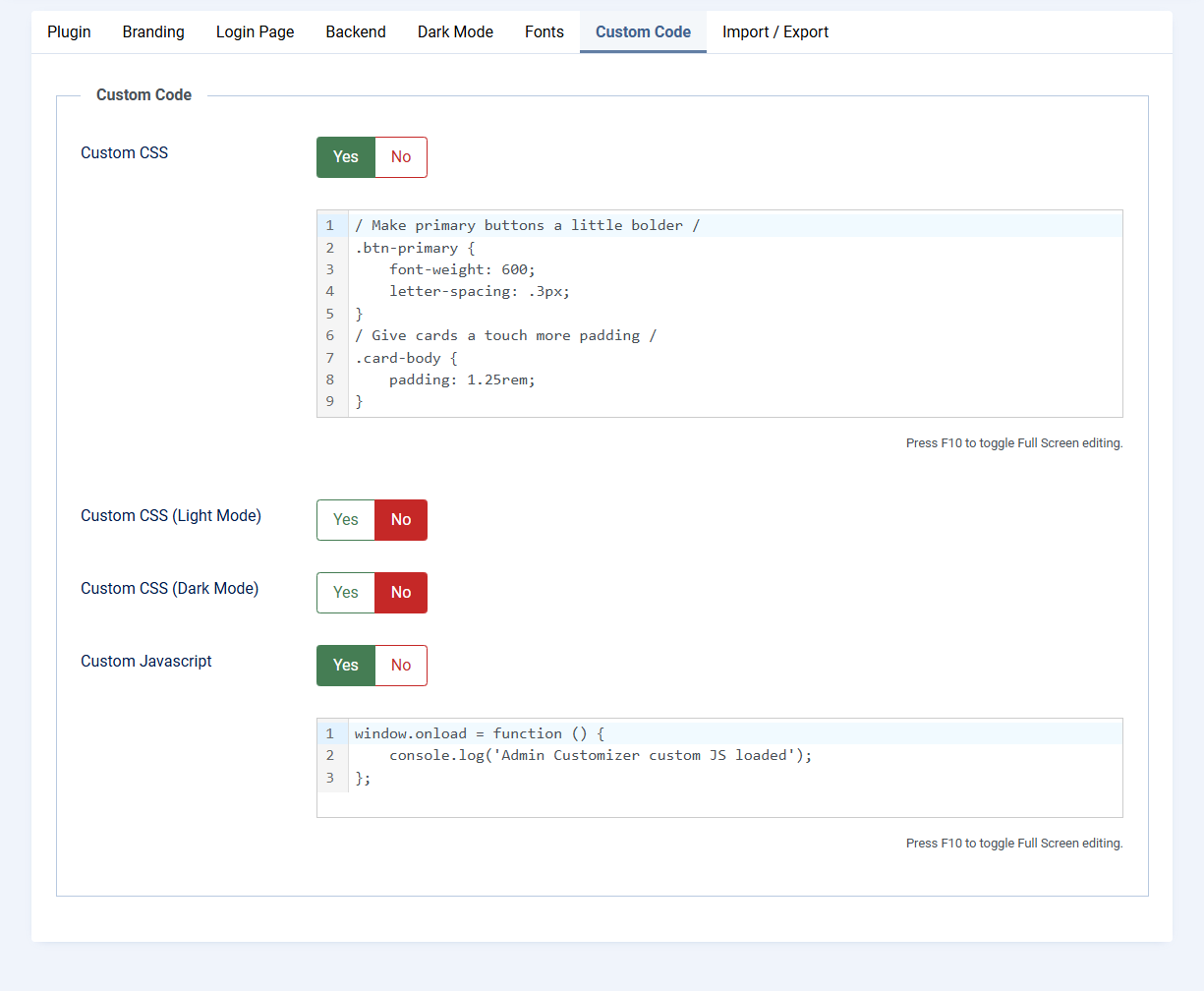
Custom CSS
Custom CSS: turn this on to add CSS that applies in both light and dark mode. Write normal CSS selectors and rules.
/ Make primary buttons a little bolder /
.btn-primary {
    font-weight: 600;
    letter-spacing: .3px;
}
/ Give cards a touch more padding /
.card-body {
    padding: 1.25rem;
}
Custom CSS (Light Mode) and Custom CSS (Dark Mode)
Custom CSS (Light Mode): CSS that should only apply when the admin is in light mode.
Custom CSS (Dark Mode): CSS that should only apply when the admin is in dark mode.
For both of these you just write regular selectors, the plugin automatically scopes them to the right color mode for you. You don't need to add [data-bs-theme="light"] or [data-bs-theme="dark"] yourself.
Use these two fields when you want a rule to behave differently between the two modes, for example a different accent color or a background image that only suits the dark theme.
Custom Javascript
Custom Javascript: turn this on to add your own JavaScript, which runs in the administration area.
window.onload = function () {
    console.log('Admin Customizer custom JS loaded');
};
Note: Custom code is powerful but it's your responsibility to keep it valid. If something looks broken after adding a snippet, switch the relevant option back to No, save, and the admin returns to normal.