Fonts tab
The Fonts tab lets you set a Google Font for headings and body text in the administration area. The fonts are downloaded to your own server once and served locally, so your visitors' browsers never contact Google. That keeps the feature GDPR-friendly out of the box.
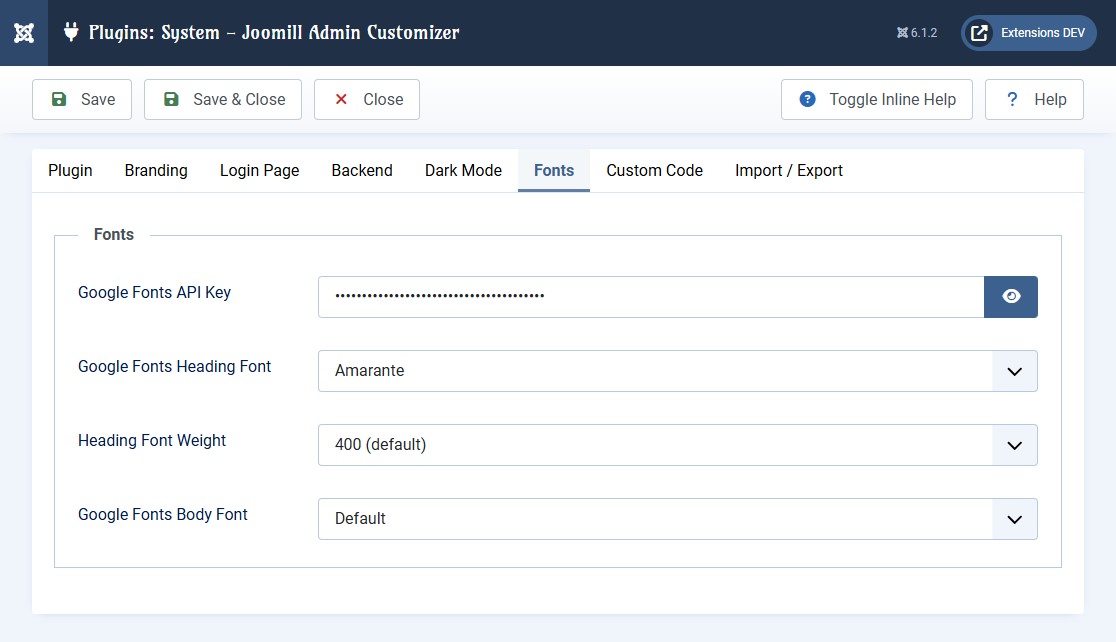
Google Fonts API Key
Google Fonts API Key: before you can pick a font, enter a Google Fonts API Key. This is what lets the plugin look up the list of available fonts so you can choose one. The key is only used to browse fonts, not to download them, so nothing about it affects your visitors. If you don't have one yet, follow the steps below.
The font pickers below stay hidden until a key is entered.
How to get your Google Fonts API Key
The key you need is specifically for the Web Fonts Developer API (sometimes shown as "Google Fonts Developer API"). Any other Google API key will not work.
- Go to the Google Cloud Console and sign in.
- In the top bar, open the project picker and create a new project, or select an existing one. Any name will do, for example "Joomla Fonts".
- Go to APIs & Services > Library, search for Web Fonts Developer API, open it and click Enable. Enabling the correct API is what makes the key work.
- Go to APIs & Services > Credentials, click Create credentials > API key. Your key appears immediately, copy it.
- Paste it into the Google Fonts API Key field on the Fonts tab and click Save.
Securing the key (recommended)
Open the key with Edit and set:
- API restrictions: restrict the key to only the Web Fonts Developer API, so a leaked key can't be used for anything else.
- Application restrictions: leave this on None, or restrict by your server's IP address. Do not use an HTTP referrer restriction: the plugin calls Google from your server, not from the visitor's browser, so a referrer restriction would block it.
Good to know
- The Web Fonts Developer API is free. You normally don't need to attach a billing account or credit card. If a project asks for billing, a standard free project is fine.
- A brand new key can take a minute or two before it starts working.
- To confirm it works: open the Heading Font or Body Font dropdown. If it fills with hundreds of font families, the key is correct. If it stays on "Default" only, or you get an error on save, the key is wrong or the Web Fonts Developer API isn't enabled on that project.
Choosing fonts
- Google Fonts Heading Font: the font used for headings in the admin area.
- Heading Font Weight: the weight for headings, from 100 to 900 (400 is the default). Use a heavier weight such as 700 for stronger, bolder titles.
- Google Fonts Body Font: the font used for the body text in the admin area.
When you save, Admin Customizer downloads the selected font files to your server and serves them from there.
Note: Because the font files are hosted on your own server, no data is sent to Google when someone opens the backend. There's nothing else to configure for GDPR compliance.