Create a form profile
A form profile is the layout of the article edit form on the site. You build it with drag and drop on the Form tab of the profile.
Create a profile
- Go to Components > Frontend Editor and click New.
- Enter a Profile name. The Note is only shown in the administrator.
- Build the form on the Form tab, as described below.
- Click Save.
Add fields
The panel Available fields lists every field you can place, grouped as Article, Publishing, Images, Links, Metadata and Custom fields. Use Search a field to find one quickly.
- Drag a field into a column, or onto a tab to add it to that tab.
- With the keyboard, select a field and press Enter.
- A field can be placed once. A placed field is marked in use.
- Joomla custom fields for articles can be placed with the PRO edition.
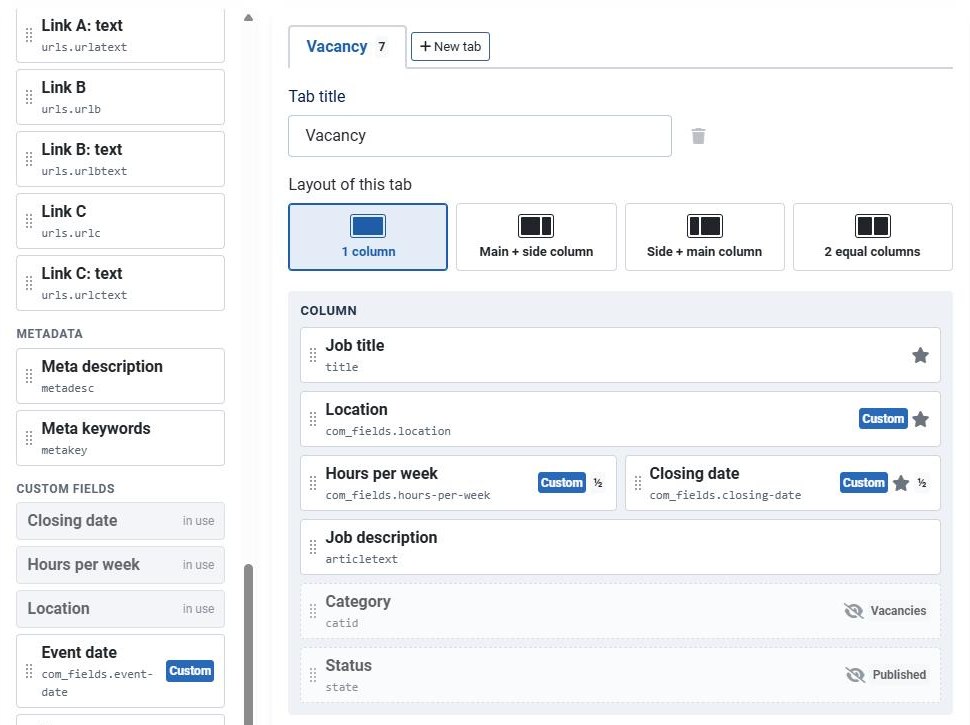
Tabs
A new profile starts with the complete standard Joomla form in four tabs: Content (title, alias, article text), Images and Links, Options (status, category, featured, access, language, tags, notes) and Publishing (dates, author alias, metadata). Take out what the author does not need. You can rename, add, move and remove tabs and fields:
- New tab adds a tab; Tab title sets its name.
- Drag a tab along the tab bar to change the order. With the keyboard: select the tab and press Alt with the left or right arrow key.
- The trash icon next to the Tab title removes the tab. Its fields go back to the available fields. A tab that holds the Title field, or the only tab, cannot be removed.
On the site, tabs are only shown when the form has more than one tab with fields. Empty tabs are skipped.
Columns PRO
Choose the Layout of this tab:
- 1 column
- Main + side column: a wide column with a narrow column next to it, for example for images and publishing fields.
- Side + main column: the same, with the narrow column on the left.
- 2 equal columns
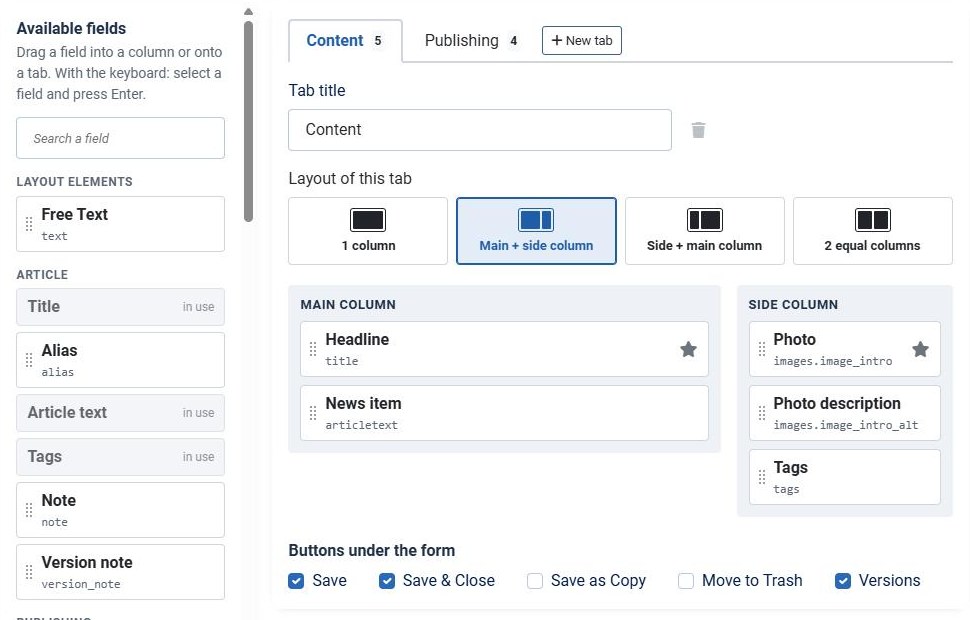
On a narrow screen the columns stack in the order they are shown: with Main + side column the side column comes after the main column, with Side + main column it comes first. Switching between these two layouts keeps the fields of the main column in the main column.
Buttons under the form
Choose which buttons the author gets:
- Save and Save & Close. At least one of the two is always shown. Cancel is always there.
- Versions: only shown when versions are enabled for articles.
- Save as Copy and Move to Trash PRO. Move to Trash only works for authors who may change the status of the article.
Rules when saving a profile
A profile can only be saved when:
- it has a name and at least one tab;
- the Title field is placed, because no article can be saved without a title;
- the Category field is placed, or hidden with a value, because every new article needs a category.
Check the result
Once the profile is assigned to a menu item, the toolbar shows Preview on the site, which opens the form on the frontend. See Assign a profile to a menu item.