Assign a profile to a menu item
A profile is used for articles that are opened or created through a menu item of the type Category List, Category Blog or Create Article. A menu item has one profile. A menu item without a profile shows the standard Joomla form.
From the profile: Menu Assignment tab
- Open the profile and go to the Menu Assignment tab.
- The tab lists all eligible menu items per menu, published and unpublished.
- Tick the menu items that should use this profile, or use Select all.
- Click Save.
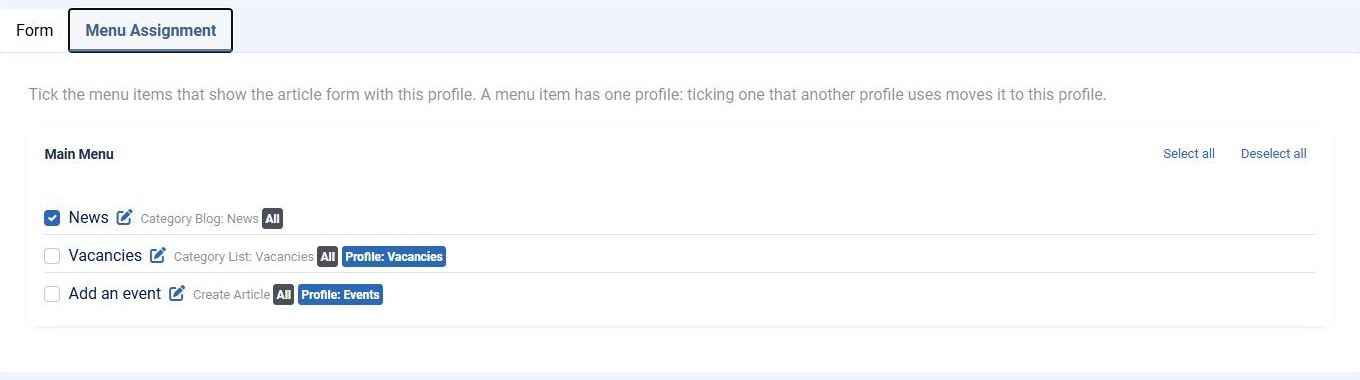
- Ticking a menu item that another profile uses moves it to this profile. The item shows the other profile's name, so you see it before you save.
- Menu items that someone is editing are skipped and reported after saving.
- Menus you may not edit are shown, but cannot be changed.
From the menu item
- Open the menu item in Menus.
- Go to the Frontend Editor tab.
- Choose the Form profile, or - Standard Joomla form -.
- Save the menu item.
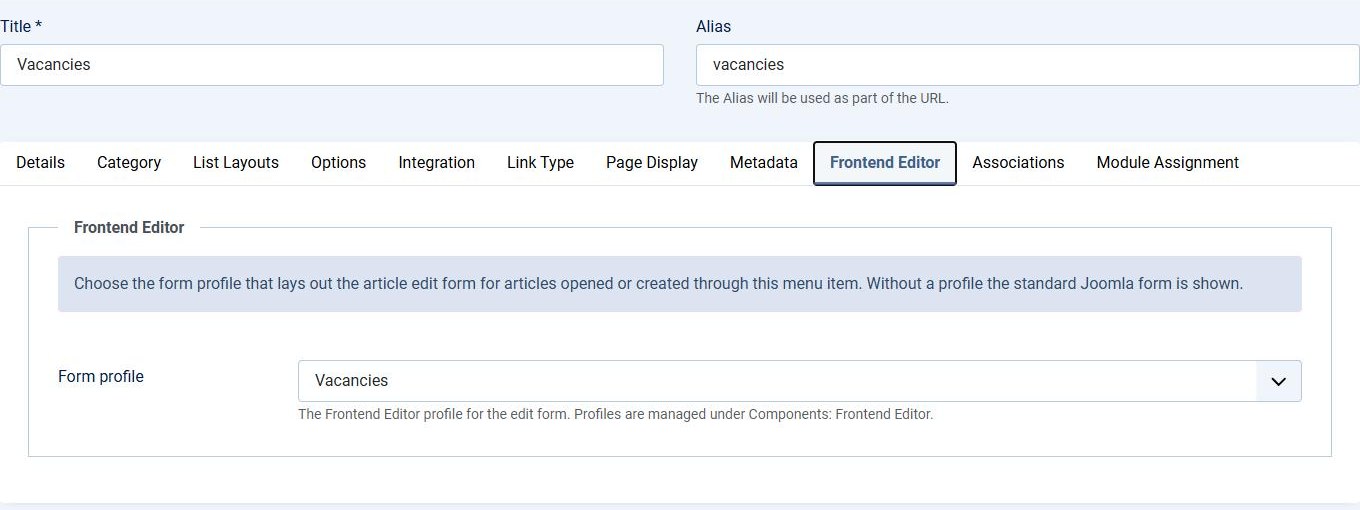
Both ways change the same setting, so they always agree.
Edit buttons that skip the menu item
Some edit links do not lead through the menu item with the profile, such as the edit button in YOOtheme Pro. Frontend Editor then uses the profile of the Category List or Category Blog menu item of the article's category, or of its nearest parent category.
Which profile does an article use?
The profile is chosen when the author opens the form and is remembered on the server for that article. Saving always uses that profile, even when the request points at another menu item.