Field settings
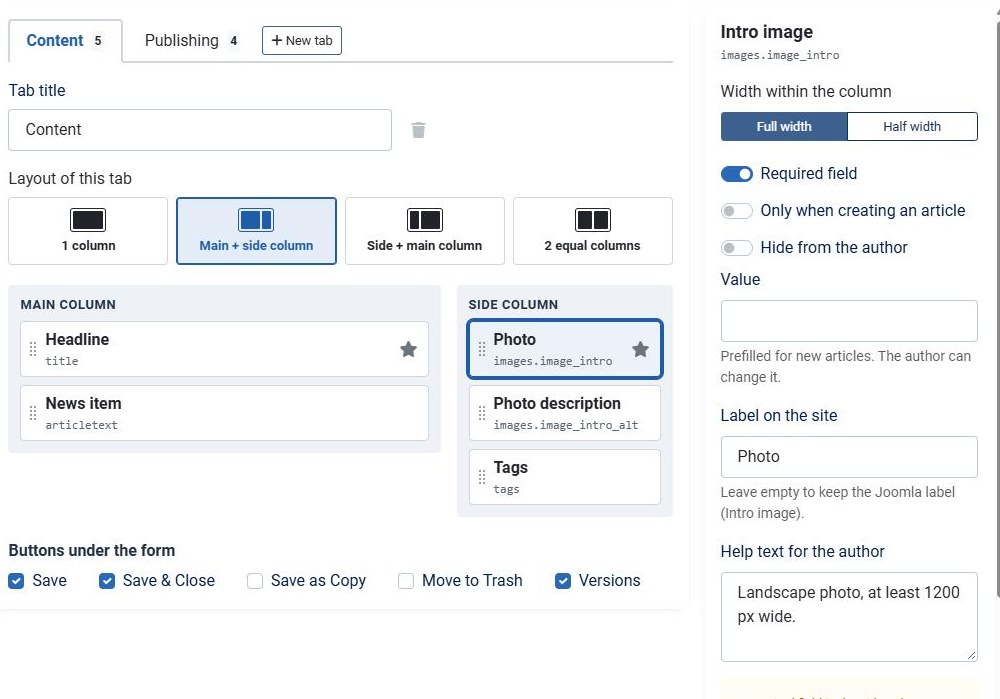
Click anywhere on a placed field to open its settings in the panel on the right. The settings apply to this profile only.
Width and position
- Width within the column, at the top: Full width or Half width PRO. Two half-width fields sit next to each other.
- Position / Move to..., at the bottom: move the field to another tab or column.
- Up and Down: change the order within the column.
With the keyboard: arrow up and down move the field, arrow left and right change the column, Delete removes it.
Required field
Tick Required field to make the author fill it in. The Title is always required.
A required field in the side column of a Main + side column tab shows a warning: on a phone the side column comes after the main column, so the author reaches it last.
Only when creating an article
Tick Only when creating an article to show a field only on a new article, for example the Alias. When the author edits an existing article, the field is not shown and its value is kept.
Label and help text PRO
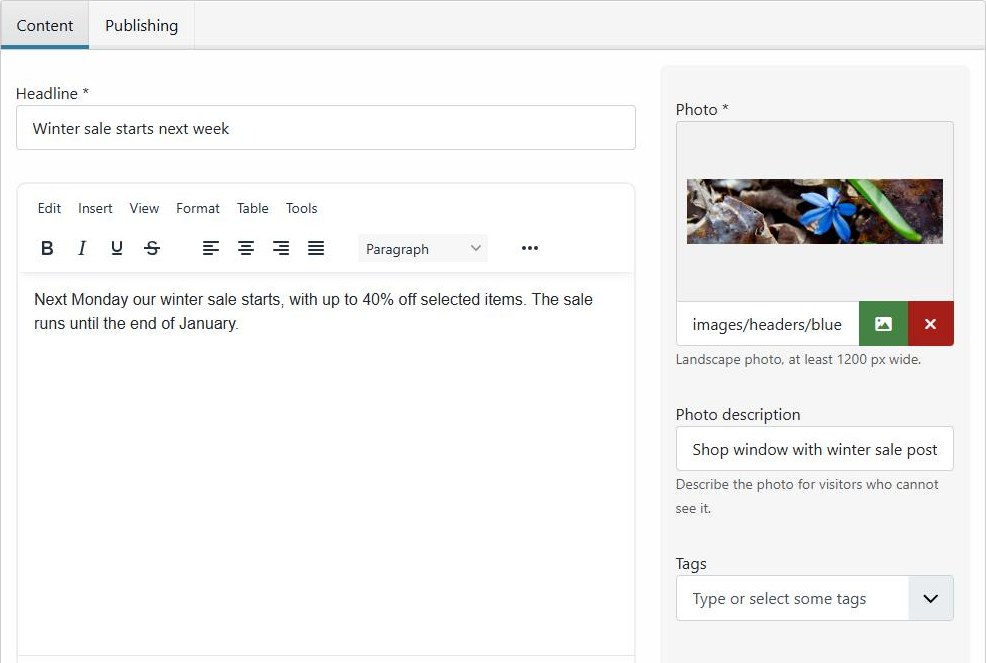
- Label on the site: the name the author sees, for example Photo instead of Intro image. Leave it empty to keep the Joomla label.
- Help text for the author: a short explanation under the field, for example At least 1200 px wide.
On the site the author sees the label and the help text:
Editor options PRO
For the Article text and for custom fields of the type editor:
- Hide the editor buttons: removes the buttons under the editor, such as Article, Image, Page Break and Read More.
- Hide the editor tabs (JCE): hides the Editor, Code and Preview tabs of JCE.
Remove a field
Remove from the form takes the field out of the profile. It goes back to the available fields. Existing articles keep the value of a removed field.
Want to give a field a value without showing it? See Hidden fields and default values.