Getting started
Frontend Editor lets you decide which fields an author sees when they edit a Joomla article on the site. You build a form profile in the administrator and attach it to a menu item. Articles opened or created through that menu item use the profile; every other menu item keeps the standard Joomla form.
How it fits together
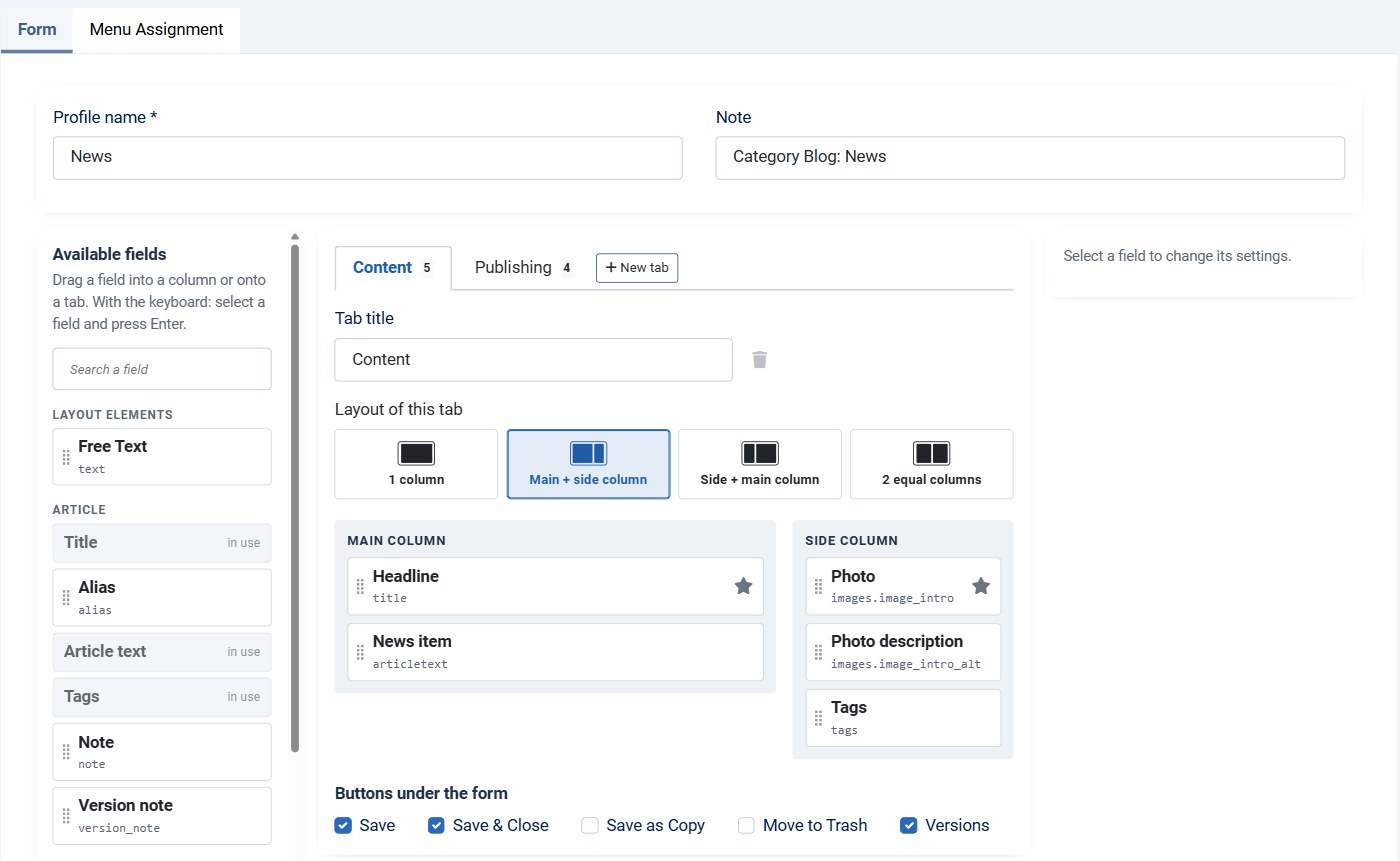
- Form profile: the layout of the edit form. It holds the tabs, the columns, the fields and their order, the values for new articles and the buttons under the form.
- Menu item: a Category List, Category Blog or Create Article menu item. It decides which profile is used.
- System plugin: shows the form as the profile lays it out and applies the profile when the article is saved.
Your first profile in five steps
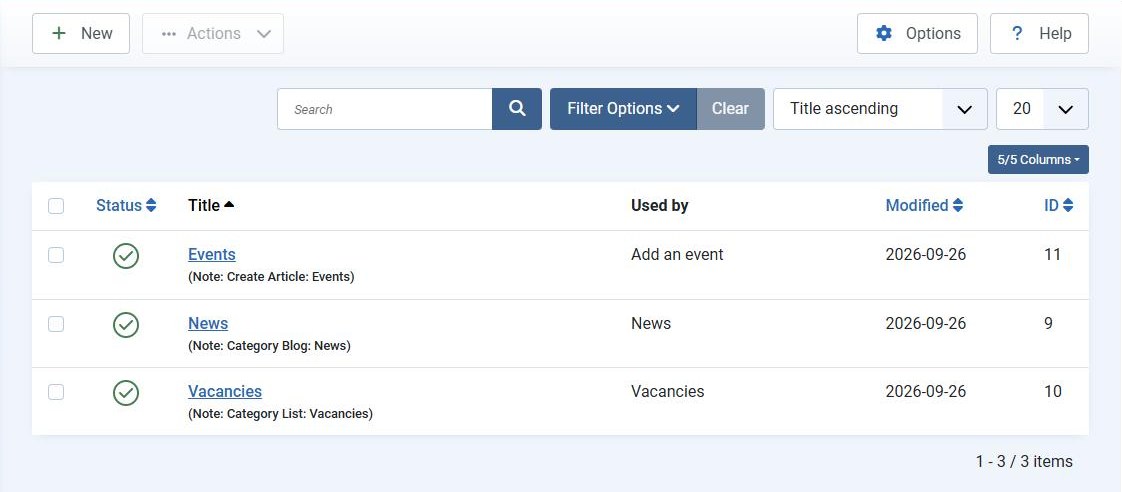
- Go to Components > Frontend Editor and click New.
- Enter a Profile name, for example News.
- On the Form tab you start with the complete standard Joomla form in four tabs: Content, Images and Links, Options and Publishing. Remove what your client does not need, and drag fields back from Available fields. Title and Category are needed for every new article.
- Open the Menu Assignment tab and tick the menu items that should use this profile.
- Click Save, then Preview on the site in the toolbar to open the form on the frontend.
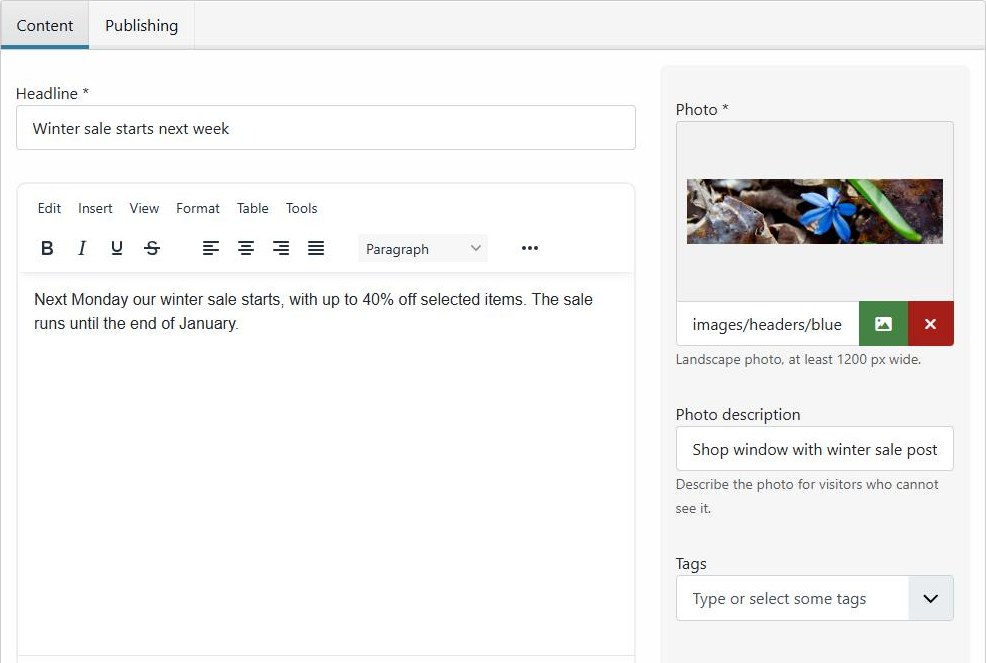
The author then gets this form on the site:
Next steps
- Create a form profile: tabs, columns and buttons.
- Field settings: labels, help texts, required fields.
- Hidden fields and default values: give a field a value without showing it.