Component Configuration
The Admin Checklist component has some options to give you control over how it works and behaves. Here is the full list of the options you can find in the Admin Checklist component settings.
Component
| Open links in new tab | If set to Yes, links in the task description will always open in a new tab, else they will be opened as set in the link. |
| Checked style |
Select the style of the checked tasks |
Line Through: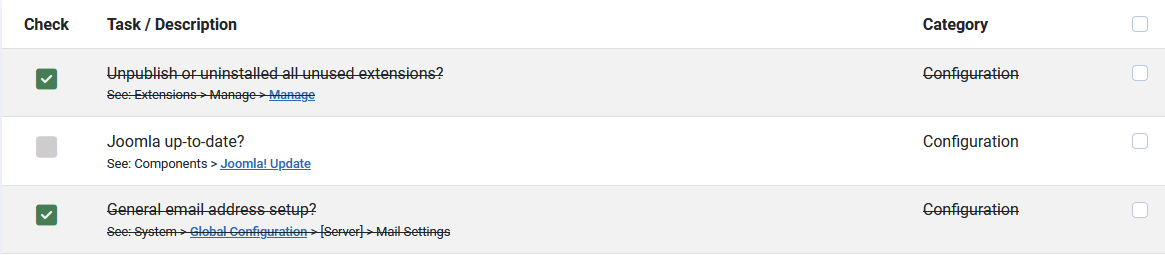
Muted: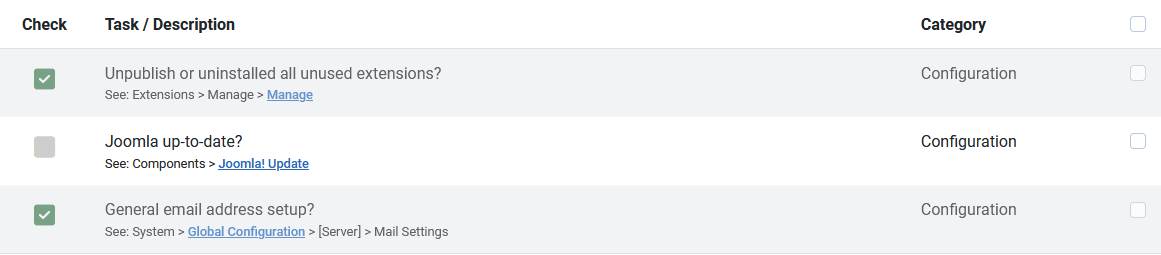
Hide checked tasks:
| Link task titles in Checklist | Available since version 1.7.0. If set to Yes, the task titles in the Checklist view become links to the edit form, so you can open a task straight from your checklist to add remarks, change the description or reassign it. Only users who are allowed to edit tasks get the link. Save & Close and Close then bring you back to the Checklist instead of to Task Management. The default is No: the Checklist stays a pure tick-off list, so clicking around while checking off tasks never opens an edit form by accident. |
| Show priority | Available since version 1.6.0. If set to Yes (the default), every task carries a priority. See Task priority below. Set it to No and the priority field disappears from the task form and the priority column and filter disappear from the Checklist and from Task Management; the priority already stored on your tasks is kept, so switching it back on restores it. |
| Enable Versions | Automatically save old versions of an item. If set to Yes, old versions of items are saved automatically. When editing, you may restore from a previous version of the item. |
| Maximum Versions |
The maximum number of old versions of an item to save. If zero, all old versions will be saved. |
| Custom CSS | Add your own CSS to style the component's front-facing pages. Useful for small visual tweaks without a template override. |
Task priority
Available since version 1.6.0. Every task has a priority: Low, Normal or High. Tasks that already existed before the update are set to Normal.
You set it on the task edit screen. The priority is shown as a coloured label in both the Checklist and Task Management, both overviews can be filtered on it, and the task list can be sorted by it.
If you don't work with priorities, set Show priority to No and the whole thing disappears from view.