Configuration
Here is the full list of the options you can find in the Content Calendar administrator module settings.
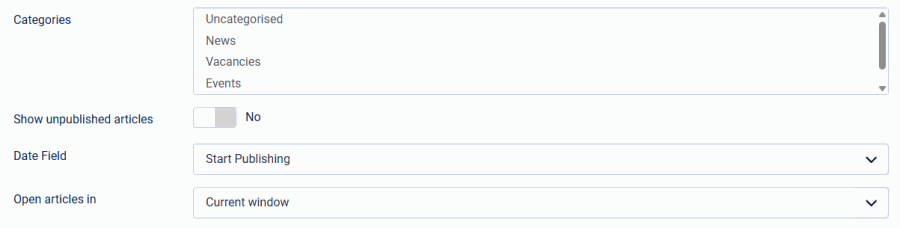
| Categories | Select the categories which you want to display in the content Calendar. You can select 1 category or multiple categories. Don't select any category will show all articles. |
| Show unpublished articles PRO version only | Set to Yes to also show articles that are still unpublished, so a draft can be planned on the calendar before it is written. Unpublished articles are shown faded with a dashed outline, their tooltip reads Unpublished, and they cannot be dragged to another date. The setting only takes effect for users who are allowed to change the state of an article; other users keep seeing the published and archived articles only. |
| Date Field PRO version only | Choose which date decides where an article appears in the calendar: Start Publishing (the publication date, the default), Featured Up (the date an article becomes featured, so only featured articles are shown) or Custom Field (a calendar field you created yourself). Dragging an article to another day writes the new date back to the field you pick here, and the add-article button pre-fills that same field. |
| Custom Date Field PRO version only | When you choose "Custom Field" above, select the calendar custom field that holds the date. Only articles that have a value in that field are shown. |
| Open articles in PRO version only | Choose whether clicking an article opens it in the current window or in a new browser tab. This applies to the add-article button as well. |
Display Settings

| Layout PRO version only | Choose Default or Week view |
| Show Last week PRO version only | When you choose "weeks-layout" above, select Yes to display the previous week, making it easy to review recent history. |
| Number of upcoming weeks PRO version only | When you choose "weeks-layout" above, select the number of weeks you want to show. |

| Colors PRO version only | Choose By Category, By Tag, By Author or By Custom Field |
| Catogory Colors PRO version only | When you choose "By Category" above, select the desired category and its corresponding color. Use + to add a new category or – to remove an existing one. |
| Tag Colors PRO version only | When you choose "By Tag" above, select the desired tag and its corresponding color. Use + to add a new tag or – to remove an existing one. |
| Author Color PRO version only | When you choose "By Author" above, select the desired user and its corresponding color. Use + to add a new author or – to remove an existing one. |
| Custom Color Field PRO version only | When you choose "By Custom Field" above, select the article custom field that determines the color. A color-type field is used directly; for a list-type field, map its values to colors below. |
| Field Value Colors PRO version only | Map the values of the selected list field to colors. Articles without a matching value fall back to the category color. |
Add articles settings

| Add articles PRO version only | Set to Yes to show the add-article-button when you hover over the calendar. When you click the Add Article button on a day, a new article will be created for that specific selected day. |
| Default publication time PRO version only | When you click the Add Article button on a day, a new article will be created for that specific selected time. |
| Default category PRO version only | When you click the Add Article button on a day, a new article will be created for that specific selected category. |
Advanced settings
| Module Class Suffix | Add a CSS class suffix to the module output, useful for targeting this specific module instance with your own CSS. |
| Header Icon | FontAwesome icon class shown next to the module title. Defaults to a calendar icon. |
| Custom CSS | Add your own CSS rules for this module instance. |