Configuration
The Access Key plugin has a small set of options that control how it works. Here's the full list, found under the Access Key System plugin settings.
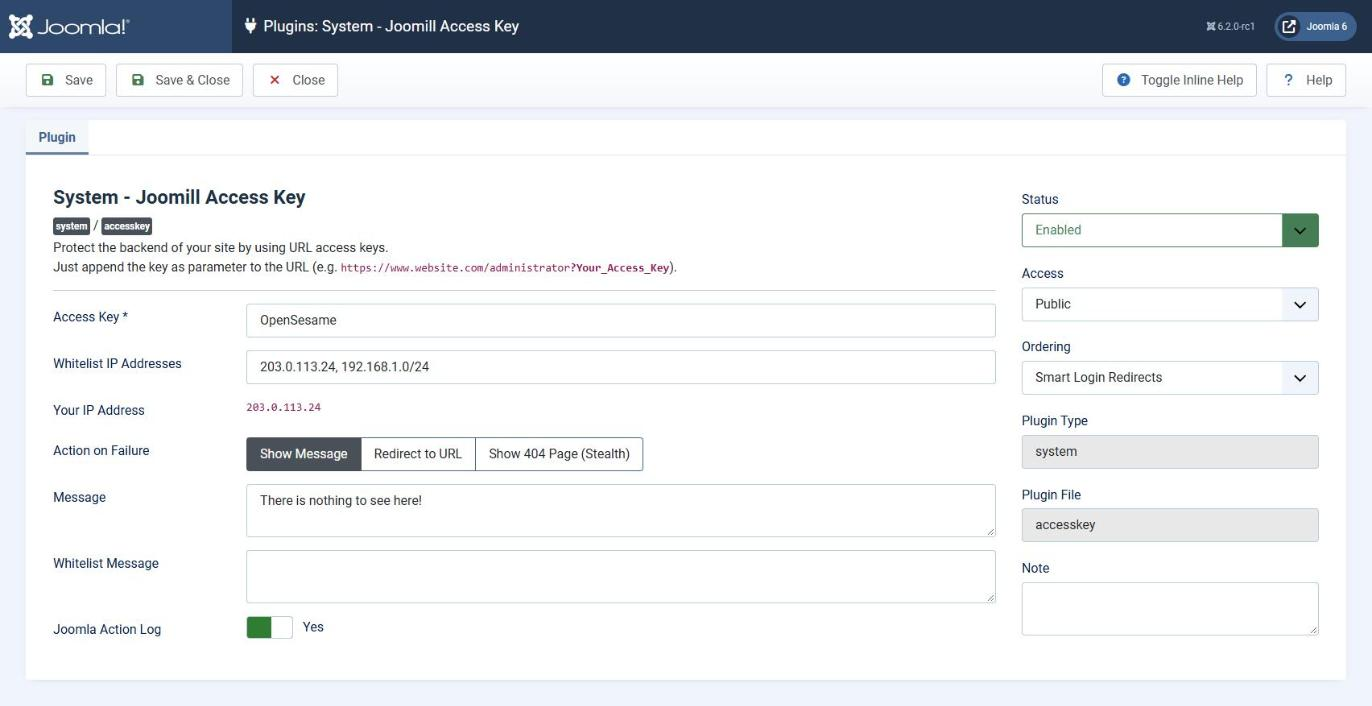
| Access Key | The key you need to add to the login URL to reach the administrator area, for example OpenSesame. With that key set, log in at https://www.website.com/administrator?OpenSesame. Use only letters, numbers, dashes and underscores; see Choosing a key below. |
| Whitelist IP Addresses | IP addresses (separated by commas, e.g. 127.0.0.1, 127.0.0.2) that can reach the administrator area without the access key. Supports both exact IPs and CIDR ranges (e.g. 192.168.1.0/24). |
| Your IP Address | Your current IP address, shown for convenience. Copy it into the field above to whitelist yourself. |
| Action on Failure | What happens when no access key, or the wrong one, is provided: show a message, redirect the visitor, or show your own 404 page (stealth mode). |
| Message (only visible when Action on Failure is set to Show Message) | The message shown when the access key is missing or incorrect. The administrator login screen stays hidden from this visitor. |
| Redirect (only visible when Action on Failure is set to Redirect to URL) | Where to send a visitor who doesn't provide the access key. Leave empty to redirect to the site's homepage. |
| Whitelist Message (applies to whitelisted IP addresses) | An informational message shown to whitelisted visitors who reach the administrator area without entering the access key, confirming they were let in because their IP is on the whitelist. |
| Joomla Action Log (since version 2.4.0) | Records granted and denied access in Joomla's own action log. Off by default; see Joomla Action Log below. |

Choosing a key
Since version 2.4.0 the key is checked when you save the plugin, and a key that cannot work is refused with a message that tells you why. There are two rules.
Only letters, numbers, dashes and underscores. The key is used as the name of a parameter in the address, and PHP rewrites some characters in such a name before the plugin gets to see it: a dot or a space becomes an underscore, and a square bracket changes the parameter altogether. A key like my.key or my key could therefore never be matched, however carefully you typed it.
No names Joomla uses itself. Words such as option, task, view or id are part of ordinary administrator addresses. As a key they would be present in almost every request and let anyone in, so they are refused, in capitals as well.
A key you saved in an earlier version is not checked again until you save the plugin. If your key has a dot or a space in it and never seemed to work, open the plugin and save it once: you will get the message and can pick a new key.
One more thing that goes wrong often: the key is the whole parameter. It is /administrator?OpenSesame, not /administrator?key=OpenSesame.
Stealth mode
Available since version 2.3.0. Set Action on Failure to Show 404 Page (Stealth) and a visit to /administrator without the access key is answered with the 404 page of your own site, sent with a real 404 Not Found status code.
Where a message or a redirect still tells a scanner that something is there, stealth mode tells it nothing at all: the administrator area answers exactly like an address that does not exist on your site. There is no message to read, no redirect to follow and no login form to attack.
It is the real page, not an imitation. The plugin asks the front end of your own site for a page that is not there, keeps that answer for an hour and serves it. Whatever your template makes of its error page, including an error page built in a page builder such as YOOtheme, is what a scanner gets to see.
If your site cannot reach itself over HTTP, the plugin builds the error page of your site template instead, and if that is not possible either it falls back to a plain 404 document that names neither Joomla nor the plugin. The status code is 404 in all three cases and the login screen is never rendered.
Two things worth knowing. The request the plugin makes appears in your own statistics as a 404 on joomill-accesskey/not-found: that is the plugin asking for its page, once an hour at most. And the Message and Redirect fields do not apply in stealth mode, which is why they disappear from the settings when you select it. Your whitelist keeps working as before.
Joomla Action Log
Available since version 2.4.0. Set Joomla Action Log to Yes and the plugin writes its access decisions to Joomla's own log, which you find under Users > User Actions Log. Choose System - Joomill Access Key in the extension filter of that list to see only these lines.
Four things are recorded:
- Access to the administrator area was granted with the access key.
- Access was granted to a whitelisted IP address.
- Access was denied.
- A visitor was blocked after too many failed attempts.
The lines carry no user name, because the visitor has not logged in yet at that point: the plugin acts before the login screen.
Repeated denials are recorded once. The plugin runs on every request to the administrator area, so a scanner trying hundreds of addresses would otherwise fill the log with hundreds of identical lines. A denial or a block from the same visitor is written once every fifteen minutes. Granted access is always written.
The IP address follows your own privacy setting. The visitor's IP address only appears in the message when IP logging is switched on in the options of the User Actions Log. With that option off, which is the Joomla default, the lines say what happened but not from where.
Uninstalling the plugin removes it from the extension filter. Lines that were already written stay in the log: they are a record of what happened on your site.
How access is granted and kept
Three things changed in version 2.3.0 that have no setting of their own but that you will notice while using the plugin.
Access expires after twelve hours
Once you enter the correct key, access is remembered on the server for twelve hours and is tied to the address you came from. Before 2.3.0 it lasted as long as your browser session. After twelve hours, or from another network, add the key to the URL again. Whitelisted IP addresses are unaffected: they never need the key.
The key disappears from the address bar
After the key is accepted you are sent on to the plain /administrator address, so the key no longer stays visible in the address bar, in your browser history, or in the referrer of links you click from that page. The key is also only read from the URL itself: it is deliberately not accepted from a submitted form, so another website cannot make your browser hand it over.
Repeated wrong keys are blocked
After ten failed attempts within fifteen minutes from the same IP address, that address is blocked and the key is not even checked any more: every visit gets whatever you configured under Action on Failure. The block lifts by itself once those attempts are older than fifteen minutes, and a successful entry clears the counter immediately. This is what stops someone guessing the key one address at a time.
Two consequences worth knowing. Whitelisted IP addresses are checked before the block, so you can always whitelist yourself out of trouble. And if you are testing your own key over and over and suddenly nothing works any more, wait fifteen minutes: you blocked yourself.